 Unlockr
How to Reduce Screen Time on iPhone: What Actually Works
Apple's Screen Time limits take one tap to ignore. These are the changes that research shows actually cut iPhone use, and how to set each one up in a few minutes.
You set a one-hour limit on Instagram. Fifty-nine minutes later a grey screen slides up, and right under the message sits a button: Ignore Limit. You tap it, pick One More Minute, and by the end of the week you're choosing Ignore Limit for Today without reading the screen at all.
That isn't a willpower problem. It's a design problem. A barrier that costs one tap teaches your thumb to tap through it. The methods below work because they change what it costs to pick up your phone, what pulls you back to it, or what you get out of it, and most of them have been tested on real people.
Why Screen Time limits stop working
Apple rebuilt Screen Time in iOS 27. App Limits became Time Allowances, and Downtime became Screen Time Schedule. The button you tap to get past them is still called Ignore Limit, and on its own it still works the same way: one tap, and you're back in.
- Open Settings → Screen Time → Time Allowances. If you've never used Screen Time, tap Turn On App & Website Activity first.
- Tap Manage Categories, then the + button, and pick Social Media, Entertainment, Games, or build a custom category with the exact apps you want.
- Tap the category and set how long it can be used each day.
When the time runs out, the app is blocked with a message that you've used your allowance, and an Ignore Limit button. With no Screen Time passcode set, tapping it gets you straight back in, no questions asked.
Habits form around the cheapest action available. When dismissing the limit is cheaper than obeying it, dismissing becomes the habit. To give it teeth:
- Go to Settings → Screen Time → Passcode & Management and tap Lock Screen Time Settings. If you forget it later, here's how to reset a Screen Time passcode.
- Ask someone you trust to type the passcode, so you don't know it.
Now Ignore Limit asks for that passcode before it offers to approve 15 minutes, an hour, or the rest of the day. That's a real barrier. It's also a blunt one, so the rest of this guide is about making you reach for the phone less often in the first place.
On iOS 26 or earlier? The same idea applies under the old names. Open Settings → Screen Time, tap Lock Screen Time Settings, have someone else set the passcode, then go to App Limits, open each limit, and turn on Block at End of Limit. The button changes from Ignore Limit to Ask For More Time.
Measure pickups, not just hours
Open Settings → Screen Time → See All App & Website Activity and scroll past the daily total. Two numbers matter more:
- Pickups: how many times you picked up the phone, and which app you opened first after each one.
- Notifications: which apps ping you the most.
Hours tell you how big the problem is. Pickups tell you where it starts. Fifty pickups a day with Instagram first after most of them is a different problem from two long YouTube sessions in bed, and it needs a different fix. Write down your daily average, your pickups, and your top "first used" app. You'll compare them in a week.
1. Turn off most notifications
Every notification is an invitation to pick up the phone, and most of them aren't from anyone who needs you. When researchers had people spend one week with phone alerts on and another with them off, participants reported more inattention and hyperactivity during the alerts-on week.
Notifications aren't the whole story, though. In a study that filmed people's real phone use, 89% of pickups happened without one. I dig into that in why you keep checking your phone.
A simple rule: if a notification isn't from a person waiting on you, or about something time-sensitive, it doesn't need your Lock Screen.
- Go to Settings → Notifications.
- For each app that fails the rule, turn off Allow Notifications.
- For apps you want to hear from occasionally, turn on Scheduled Summary instead and get them in one batch at a time you choose.
- Turn off Badges for social and shopping apps. Those red dots exist to pull you back in.
2. Switch your screen to grayscale
Color is part of the reward. Bright thumbnails, red badges, and saturated feeds are designed to catch your eye. In grayscale, Instagram looks like a newspaper, and it's easier to put down.
The evidence is solid, if modest. In a 2023 study of 84 adults, one week of grayscale cut daily screen time by 20 minutes, lowered stress, and made people feel more in control of their phone use. A 2026 crossover trial with 51 medical students found about 28 fewer minutes per day.
- Open Settings → Accessibility → Display & Text Size → Color Filters.
- Turn on Color Filters and choose Grayscale.
- In Settings → Accessibility → Accessibility Shortcut, select Color Filters. Now a triple-click of the side button switches color back for photos and maps.
The catch: in the 2023 study, people unlocked their phones just as often as before. Grayscale makes each session shorter, but it doesn't stop the checking. Pair it with something that targets the pickup itself.
3. Make your worst apps harder to reach
Look at your top "first used" app from the pickups report. If it sits on your first Home Screen page, opening it takes less thought than unlocking your phone.
- Touch and hold the app, tap Remove App, then Remove from Home Screen. It stays in the App Library and Search, so you can still get to it, but only on purpose.
- To hide a whole page, touch and hold the Home Screen, tap the page dots at the bottom, and uncheck the page.
- Keep the first page for tools: Camera, Maps, Notes, Calendar. Nothing with a feed.
This is friction in its mildest form, a few extra seconds of searching. It helps. But the strongest evidence is for a stronger version of the same idea, which comes after one more built-in tool.
If YouTube or Instagram is the app, the feed itself is also worth a look. Both have settings that cut down on Shorts and Reels specifically, covered in how to turn off YouTube Shorts and Instagram Reels.
4. Use Screen Time Schedule and Focus for the hours that matter
Screen Time Schedule (Settings → Screen Time → Screen Time Schedule, called Downtime on iOS 26 and earlier) splits your day into windows and blocks whichever Time Allowance categories you leave out of each one, for example Social Media off from 10 p.m. to 7 a.m. It has the same weakness as Time Allowances: without a passcode, Ignore Limit gets you through in one tap.
Focus (Settings → Focus) is better at shaping your environment than blocking it. Create a Sleep or Work Focus, choose which people and apps can notify you, and under Customize Screens pick a Home Screen page that only shows what you need for that time. When the feed apps aren't on screen, you think about them less. If nights are your worst time, see how to stop scrolling in bed.
5. Put a pause between the impulse and the app
This is the method with the strongest evidence behind it. In a field experiment published in PNAS, researchers followed 280 people who installed one sec, an app that interrupts you when you try to open an app you've chosen. It shows a short wait, a message, and a button to back out instead of continuing. After six weeks:
The more useful finding came from a follow-up experiment with 500 people that tested each part separately. The option to back out had the strongest effect. The waiting time also helped. The message asking whether you really wanted to open the app had no measurable effect.
So guilt doesn't change behavior. A pause, plus an easy way out, does.

6. Make the pause worth something
A disclosure first: I build Unlockr, so I'm biased about this part. It started from a question the research above raises. If a pause before Instagram cuts how often you open it, why should that pause be dead time?
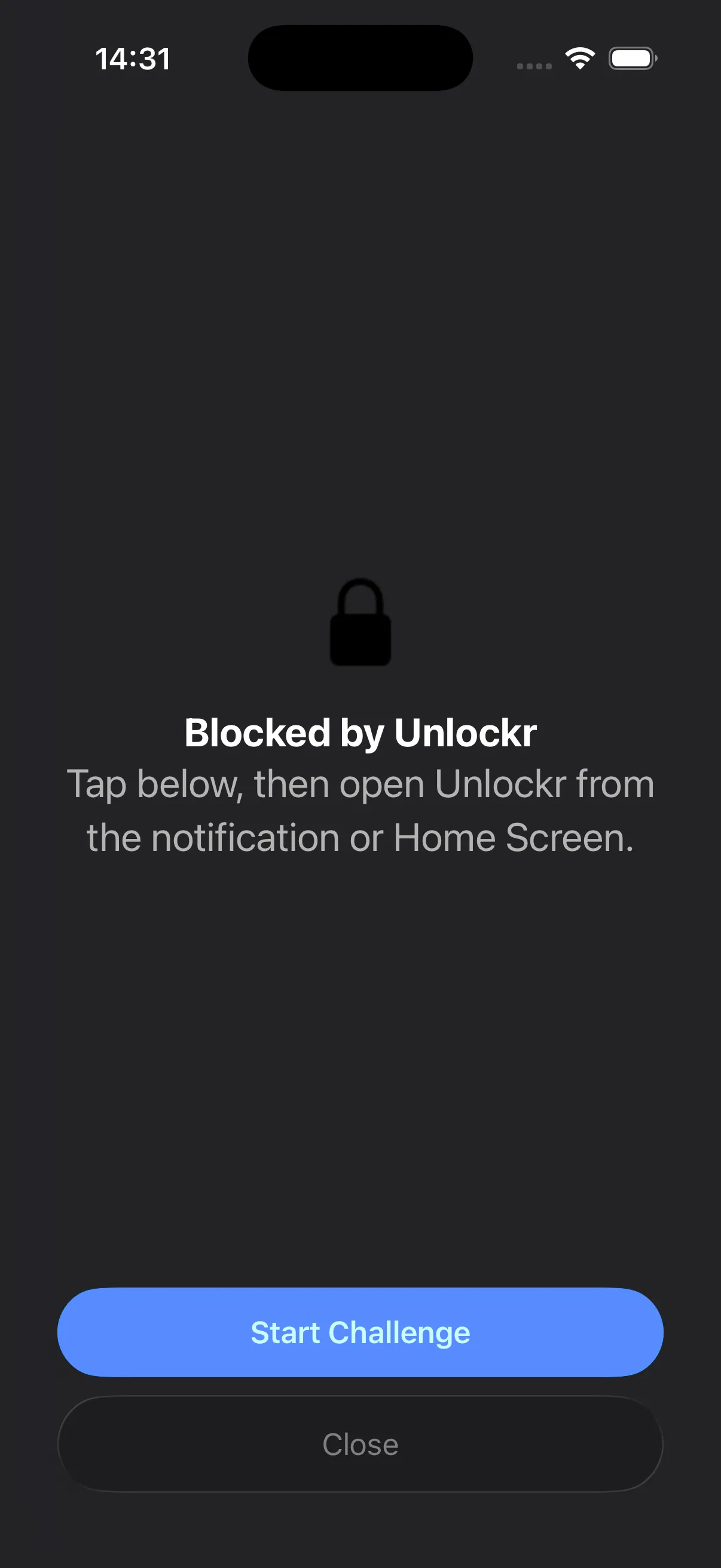
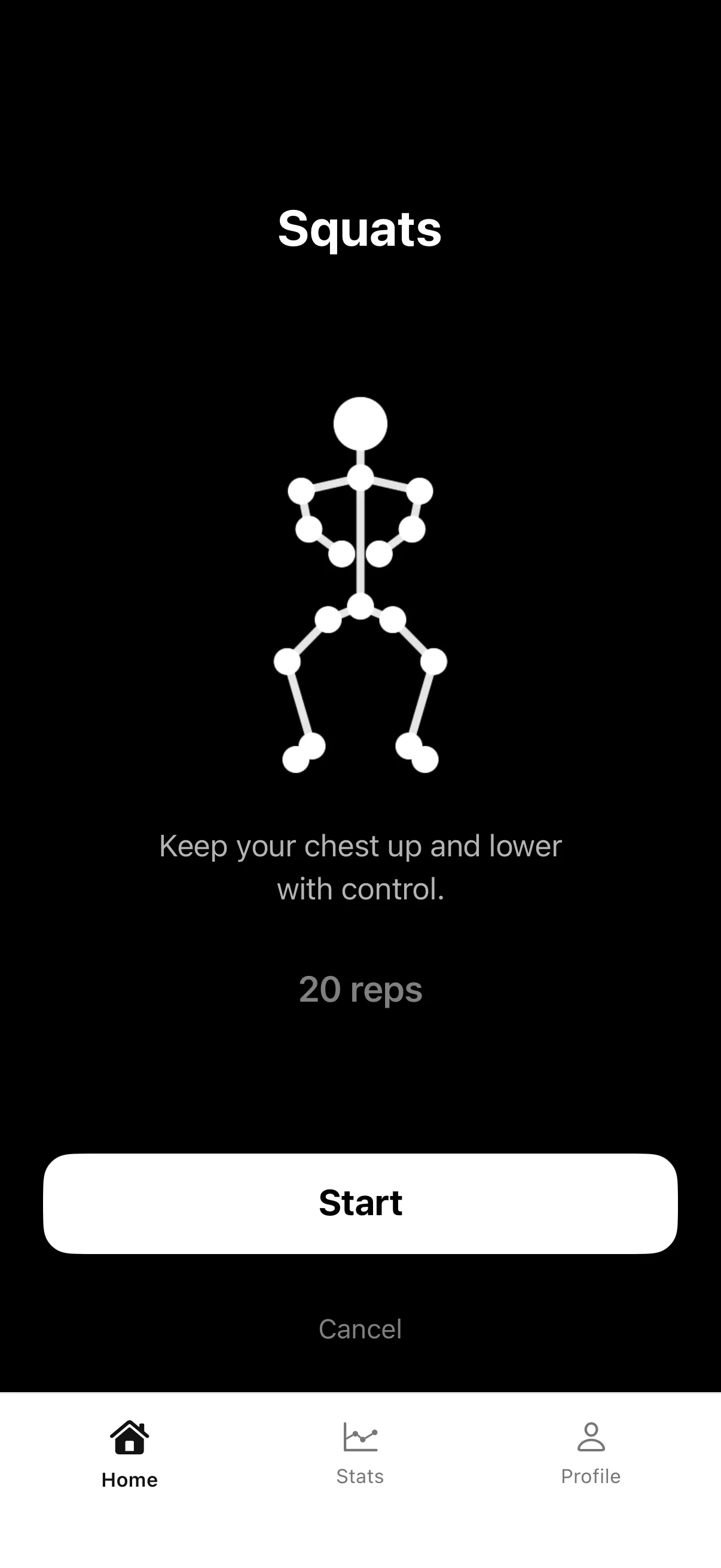
Unlockr puts a shield over the apps you pick. To get in, you finish a short challenge first:
- A paced breathing exercise.
- A set of squats or push-ups, or a plank, counted by your iPhone's camera. The counting happens on the device, and no video leaves your phone.
The shield also has a plain Close button, the "easy way out" that mattered most in the one sec study. And the time you earn only counts down while the unlocked app is actually open, so locking your phone doesn't waste it.
The breathing option isn't arbitrary. In a month-long randomized study, five minutes a day of breathing with long exhales improved mood and lowered breathing rate more than the same time spent on mindfulness meditation. Unlockr's breathing challenge is shorter than that, so treat this as a reason the pause doesn't have to be wasted, not as a promise.
To be clear about the limits of the evidence: Unlockr hasn't been tested in a trial the way one sec has. What it borrows is the mechanism that has been tested: friction before the app, with a way out. For what the research says about exercise and phone use more broadly, see Does exercise actually reduce screen time?
Which method to start with
| Method | Setup | What the evidence says | Easy to bypass? |
|---|---|---|---|
| Time Allowance, no passcode | 5 min | Ignoring it costs one tap | Very |
| Time Allowance + someone else's passcode | 5 min | Real barrier, but blunt | Hard |
| Fewer notifications | 10 min | Less inattention with alerts off | Not really, it stays off |
| Grayscale | 1 min | 20 to 28 fewer minutes a day, same number of unlocks | Easy, triple-click |
| Apps off the Home Screen | 5 min | Mild friction, not studied on its own | Easy |
| A pause with a way out | 2 min | 57% fewer app openings after six weeks | Possible, but it takes a decision |
A 10-minute setup for tonight
- Write down three numbers: daily average, pickups, and your top "first used" app.
- Turn off notifications for every app that isn't a person or time-sensitive.
- Set the Accessibility Shortcut to Color Filters and go gray after dinner.
- Move your top "first used" app off the Home Screen.
- Put a pause in front of that same app, with Unlockr, one sec, or a passcode someone else holds.
In a week, check the three numbers again. If pickups barely moved, the pause isn't strong enough yet. If hours dropped but pickups didn't, you're checking less deeply, not less often, and the next step is a pause on the second app on your list.
Frequently asked questions
Why don't my iPhone Screen Time limits work?
Because ignoring them costs one tap. On iOS 27, when a Time Allowance runs out, the app is blocked and Ignore Limit gets you straight back in. Set a Screen Time passcode that someone else chooses, under Passcode & Management, and Ignore Limit then asks for that passcode before approving more time. (On iOS 26 and earlier, the same fix uses App Limits and a toggle called Block at End of Limit.)
Does grayscale actually reduce screen time?
Yes, modestly. In a 2023 study of 84 adults, one week of grayscale cut daily screen time by 20 minutes. A 2026 crossover trial with 51 medical students found about 28 minutes less per day. Grayscale shortens sessions but did not reduce how often people unlocked their phones.
How much screen time is too much?
There is no single number that fits every adult. A better test is whether your phone use is crowding out sleep, focused work, or time with people. Your pickup count and the app you open first after each pickup tell you more than total hours.
Is there an app that makes you exercise before opening other apps?
Yes. Unlockr for iPhone keeps the apps you choose behind a shield until you finish a short breathing exercise or a set of squats, push-ups, or a plank counted on-device by the camera. The time you earn only counts down while the unlocked app is open.
Sources
- Grüning, D. J., Riedel, F., & Lorenz-Spreen, P. (2023). Directing smartphone use through the self-nudge app one sec. PNAS. doi.org/10.1073/pnas.2213114120
- Dekker, C. A., & Baumgartner, S. E. (2023). Is life brighter when your phone is not? The efficacy of a grayscale smartphone intervention addressing digital well-being. Mobile Media & Communication. doi.org/10.1177/20501579231212062
- Hagerty, J., et al. (2026). A cross-over feasibility trial of smartphone grayscale mode in medical students. Frontiers in Digital Health. doi.org/10.3389/fdgth.2026.1816095
- Kushlev, K., Proulx, J., & Dunn, E. W. (2016). "Silence your phones": Smartphone notifications increase inattention and hyperactivity symptoms. CHI 2016. doi.org/10.1145/2858036.2858359
- Balban, M. Y., et al. (2023). Brief structured respiration practices enhance mood and reduce physiological arousal. Cell Reports Medicine. doi.org/10.1016/j.xcrm.2022.100895