 Unlockr
Does Grayscale Actually Reduce Screen Time?
Make your phone black and white, and the feed might become easier to leave. That is the promise behind grayscale. There is research behind it, but the useful question is which part of your phone use you expect it to change.
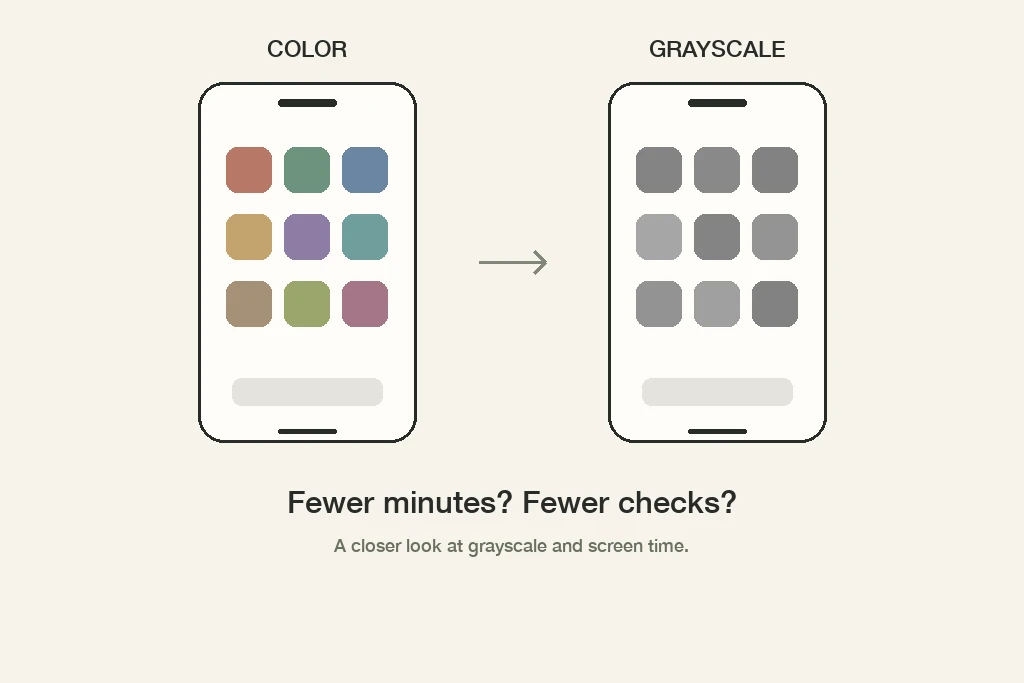
The appeal is obvious: no new subscription, no app to configure, and a change you can reverse. But “make the screen less appealing” can mean different things in practice. You might spend less time inside an app while still opening it just as often.
The short answer: grayscale is worth testing if you want shorter sessions. Treat the minutes you spend, the checks you make, and the tasks you finish as separate outcomes.
What three studies found
A randomized comparison with other strategies
Laura Zimmermann and Michael Sobolev's preregistered field experiment, published in a 2023 journal issue, involved 112 participants. It compared grayscale with committing to time limits and a self-monitoring control condition.
Grayscale produced an immediate reduction in objectively measured screen time relative to the control group. Goal-setting produced a smaller, more gradual reduction. However, the researchers found no immediate causal benefit for subjective well-being or academic performance. That distinction matters: using a phone less is one result; feeling better or doing better academically is another.
Less screen time, about the same number of unlocks
In a study by Cynthia A. Dekker and Susanne E. Baumgartner, 84 Android users had their behavior logged during a baseline week and then a grayscale week. Average daily screen time fell by roughly 20 minutes, but the number of phone unlocks did not significantly change.
Participants reported greater control and less perceived overuse; reported productivity and sleep quality did not improve. There was no concurrent control group, and most participants already wanted to reduce their use. The design leaves room for explanations beyond the display change itself.
A newer trial with medical students
A 2026 feasibility trial had 51 first-year medical students complete one week in color and one in grayscale, with the order varying between groups. Daily screen time was about 28 minutes lower in the grayscale condition.
There are useful cautions in the methods: sequence assignment alternated with enrollment order rather than using random allocation, participants reported figures from their phones' tracking tools, and there was no washout period between conditions. This was a short, exploratory study in a specific student population. It adds evidence worth considering, rather than a personal forecast of minutes you will save.
What the setting can and cannot change
Consider two possible problems. In the first, you open a photo feed and stay far longer than intended. In the second, you repeatedly reach for your phone between small tasks. Before changing a setting, decide which one you want to work on.
Making a feed look different leaves other parts of the experience intact: the people you follow, the messages you want to answer, and the content waiting behind the icon. Color is one part of that environment. A display change also leaves the choice to open an app available.
That makes grayscale a different tool from an app restriction. If you want help with access to a specific app, our iPhone screen-time guide covers other options. If the issue is frequent checking, start with the situations in which you reach for the phone, as discussed in the phone-checking habit.
Be specific about what you would consider useful. A smaller daily total might be welcome, but finishing a reading session without opening a feed could matter more to you. Neither goal needs to stand in for every other aspect of your day.
How to turn on grayscale on iPhone
Apple provides grayscale as a Color Filter. Following its display-colors guide:
- Open Settings.
- Choose Accessibility, then Display & Text Size.
- Open Color Filters and turn it on.
- Select Grayscale.
You can return to the same setting to turn the filter off. Before committing to a test, try a few ordinary tasks. Can you comfortably read your usual apps? Do you need color for the photos, maps, charts, or other material you use? Make room for those tasks rather than treating the setting as a rule you must keep at any cost.
How to test it without guessing
The following is a personal comparison, not a research protocol. Its purpose is to help you decide whether the trade-off fits your routine.
1. Write down the habit you want to change
Choose something observable: “I want to spend less time in my evening feed,” for example. “I want a healthier relationship with technology” is harder to judge at the end of a week. Pick one main outcome before you look at results.
2. Keep a baseline
Record a normal week before switching. Save your daily total and the time spent in the app you care about. If checking frequency matters, record that separately where your phone's report provides it, or keep a small tally during the particular activity you want to protect.
3. Change the display for a comparable week
Keep other changes modest. If you also delete social apps, start a new job, and go on holiday, it will be difficult to tell what the display contributed. Note unusual days and occasions when you temporarily restore color. Those notes explain your experience; they are not reasons to mark the experiment a failure.
4. Look beyond a single number
Compare similar days, and check the app you chose alongside the total. Ask whether you used a laptop or another device more instead. Also note what became inconvenient. A setting that saves some scrolling but repeatedly gets in the way of work may need a narrower role.
5. Decide what to keep
If you like the change, keep it. If only certain times of day benefit, use it then. If you dislike the trade-off, choose another approach. A personal before-and-after comparison cannot prove causality, but it can help you make a practical decision without relying only on a first impression.
Choose the tool for the moment you want to change
Grayscale changes the display. Notifications, app access, and your reasons for checking are separate things you can consider. You do not have to change all of them at once.
For a different kind of friction, Unlockr lets you lock selected apps and earn access through a breathing or movement challenge. That is a separate approach; the studies above did not test Unlockr. Choose according to the behavior you want to change and whether the setup fits your day.
Frequently asked questions
Does grayscale stop you checking your phone?
Not necessarily. One study found less daily screen time without fewer phone unlocks. Track checking separately if that is the habit you want to change.
How do I turn on grayscale on iPhone?
Go to Settings, Accessibility, Display & Text Size, then Color Filters. Turn Color Filters on and select Grayscale. You can return here to turn the filter off.
Does grayscale block apps?
No. Grayscale changes the appearance of the display. Your apps remain available. If you need a restriction on access, that requires a separate tool or setting.
Sources
- Zimmermann, L., & Sobolev, M. (2023; first published online 2022). Digital Strategies for Screen Time Reduction: A Randomized Field Experiment. Cyberpsychology, Behavior, and Social Networking, 26(1). doi.org/10.1089/cyber.2022.0027.
- Dekker, C. A., & Baumgartner, S. E. (2024; first published online 2023). Is life brighter when your phone is not? The efficacy of a grayscale smartphone intervention addressing digital well-being. Mobile Media & Communication, 12(3). doi.org/10.1177/20501579231212062.
- Hagerty, J., Saretha, S., Phung, B., Le, V., Vargas, J., Khan, F., & Wright, D. (2026). A cross-over feasibility trial of smartphone grayscale mode in medical students. Frontiers in Digital Health, 8, 1816095. doi.org/10.3389/fdgth.2026.1816095.
- Apple. Change display colors on iPhone to make it easier to see what’s onscreen. Checked November 6, 2026.